![FMN_logo_2024.png]](https://support.forgetmenot.chat/hs-fs/hubfs/FMN_logo_2024.png?height=40&name=FMN_logo_2024.png)
The Question Series Previewer is available from the Series Overview and can be used to view questions, in a simulated mobile phone experience.
It can be used in the following modes:
- Compact Mode
- Expanded Mode
Question Series Previewer Compact Mode
When selected from the Preview Questions option, the Question Series Previewer opens in a side panel in a compact mode. This displays a simulated mobile phone viewport and provides selectors for Attempt, Answer Type and Variants.
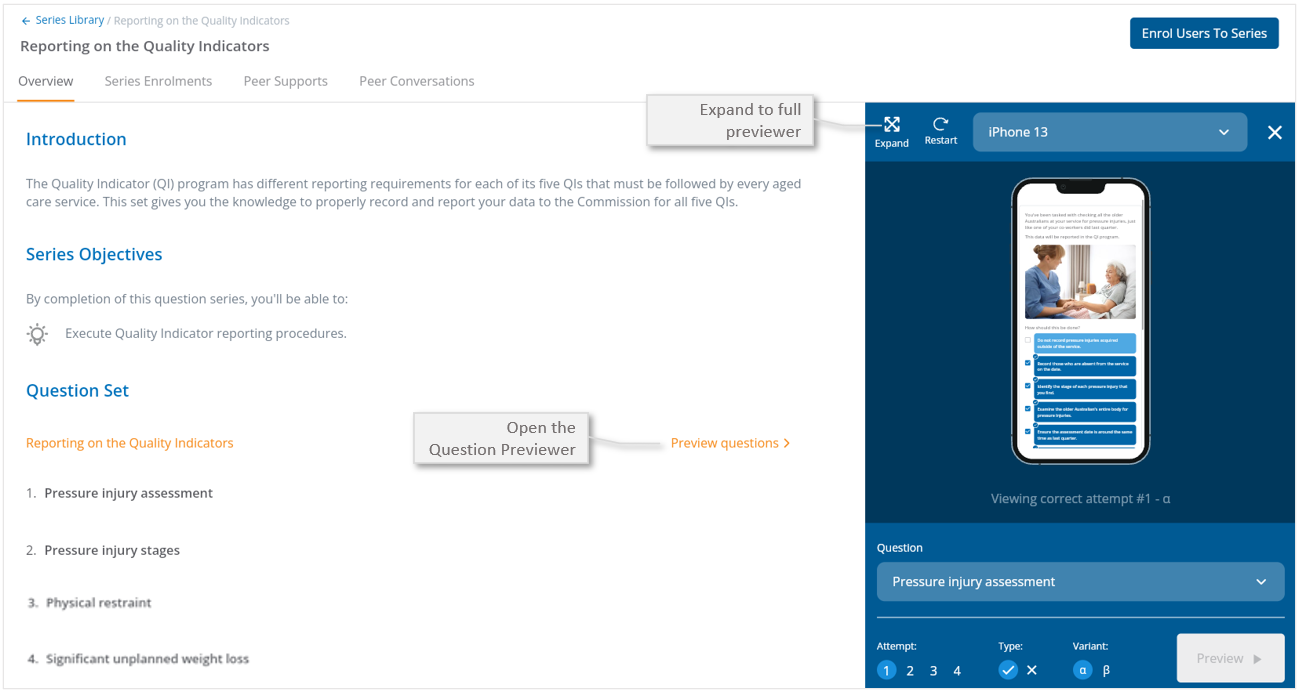
✅Select Expand to open into the Expanded Mode
✅Did you know you can click to watch a video, listen to audio or view learning resources directly in the Question Series Previewer
Question Series Previewer Expanded Mode
When expand is selected, the Question Series Previewer opens in full screen mode. This displays a simulated mobile phone viewport and provides selectors for Questions, Attempt, Answer Type and Variants.
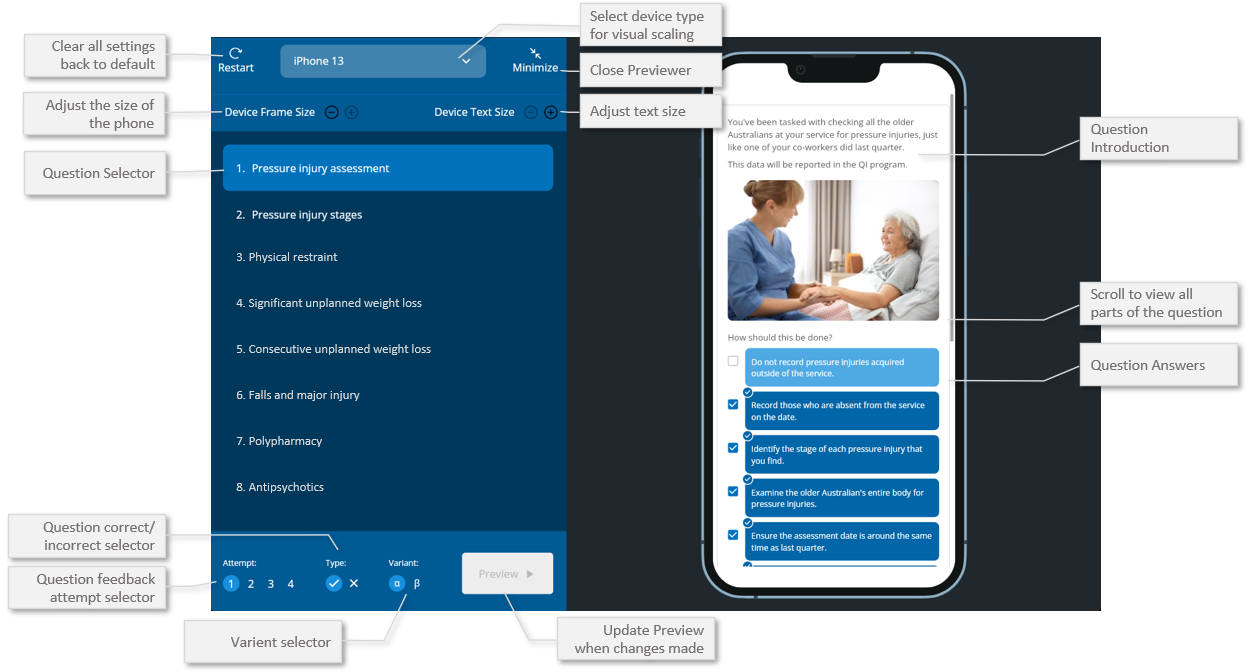
✅Select Minimise to return to the Compact Mode
✅Did you know you can click to watch a video, listen to audio or view learning resources directly in the Question Series Previewer
The the following selection options can be used to choose a question to preview or visually adjust the phone viewport.
Restart - Clear all settings back to the defaults
Device Frame Size - zooms the phone device to increase or reduce it's visual size
Device text Size - zooms the text inside the phone viewport to increase or reduce text size
Minimise - closes the expanded mode and returns to the compact view
Question Selector - choose a question to update the preview
Attempt Selector - choose a different feedback attempt to update the preview
Type Selector - choose a different answer type (e.g. correct or incorrect) to update the preview
Variant Selector - choose a different variant to update the preview
Preview ▶️ - select to update the viewport when other selections have been made