![FMN_logo_2024.png]](https://support.forgetmenot.chat/hs-fs/hubfs/FMN_logo_2024.png?height=40&name=FMN_logo_2024.png)
The Group Membership Details view is useful to see all members of a group. The list shows the name and email address of each member, the name of any sub-groups, and the total membership count for the group. It also shows each member's account type and role within the group.
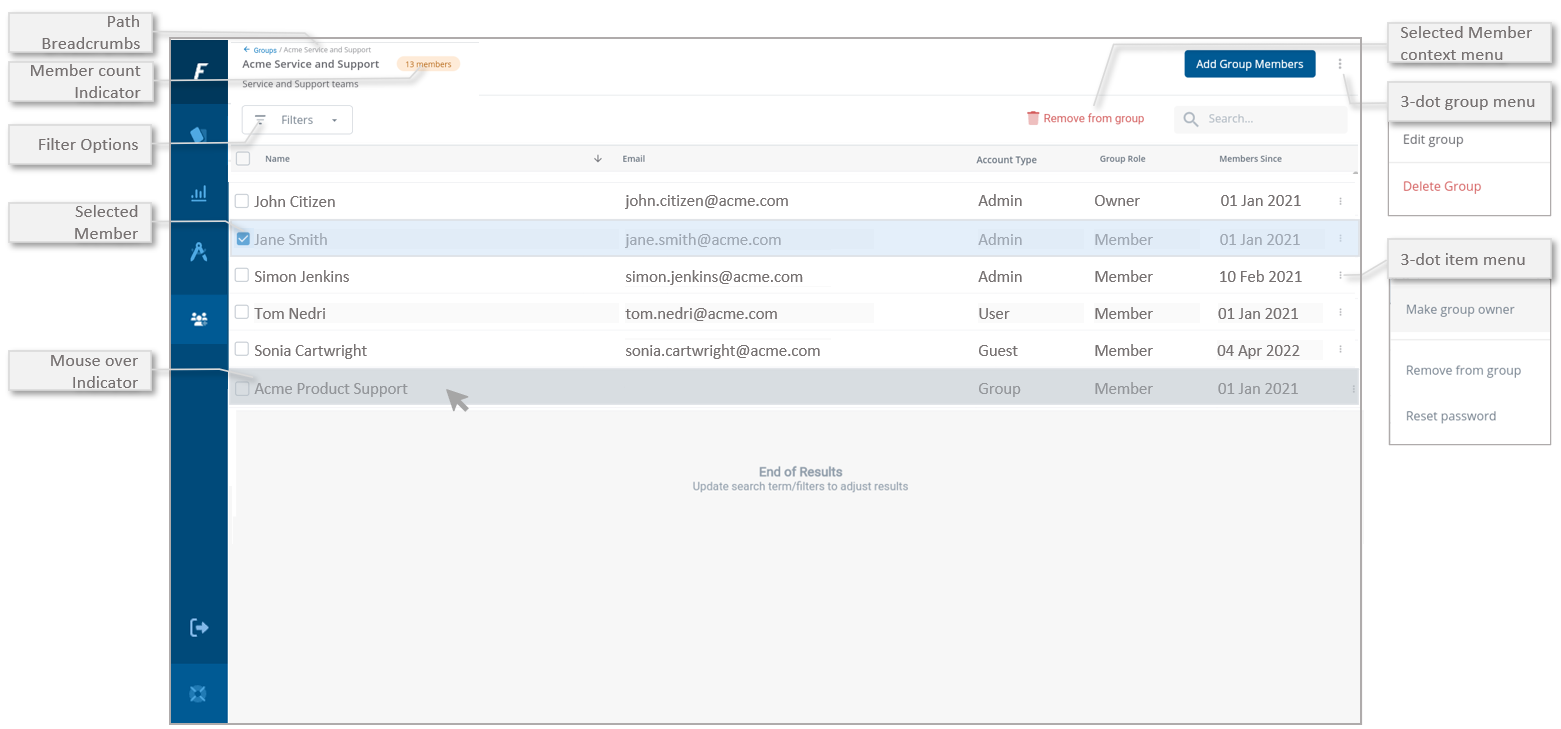
Path Breadcrumbs
Use the path breadcrumbs to find out your positions with nested groups. You can use the breadcrumbs to navigate back to previous groups
Member Count
The member count indicates the total number of members in the group. This includes all account types and sub-groups. The member count will be updated as new members are added or removed from the group
⚠️ The member count does not reflect the member count of any sub groups which are part of the group
Selected Member context menu
When one or more members are selected (indicated by a tick), the context menus will appear to give further options such as:
- Removed from Group - this will remove all selected members from the group
Filter Options
Use the filter to only show items that match the selected options
- Account Type (this will show users, admin, guest, or groups that match the selected options)
- Group Role (this will show Owners or Members that match the selected options)
3-dot group menu
Use the item 3-dot group menu to access additional functions such as:
- Edit group
- Delete Group
Search and Sort
Use the Search function to filter the members to match the entered search term. The list can also be sorted by selecting the heading column text to change the arrow direction A-Z ⬆️ or Z-A ⬇️
Selected Member
Select one or more members, indicated by a tick, to show the context menus. These will give further options to apply to all selected members
3-dot item menu
Use the item 3-dot group item to access additional functions such as:
- Make Group Owner - gives group owner privileges to the selected user to allow them to add and remove members and other related functions
- Remove from Group - removes the select user from the group membership
- Reset Password - allows the password to be reset for the selected user
Mouse over indicator
Use the mouse to show which item is ready to be clicked. When a group is clicked, the Group Membership Details view is shown.
⚠️Group Membership will only select down to the 3rd level