![FMN_logo_2024.png]](https://support.forgetmenot.chat/hs-fs/hubfs/FMN_logo_2024.png?height=40&name=FMN_logo_2024.png)
In order to convert text into audio clips for use in Question Sets the following prerequisites, setup, checks and recording steps must be followed.
⚠️The method is best used for text scripts that require English accents of either; Australian, Irish, British, American or Canadian
If you require Asian, Indian or African accents then use the other process
Prerequisites
- O365 account with MS Word or PowerPoint
- Chrome Web Browser
- Text Scripts based on the Question Set in in PowerPoint or Word format
 SpeechText.AI: Record, Capture & Transcribe chrome extension installed and pinned so icon is visible in menu bar (The extension allows you to capture and save audio from an active tab within the browser)
✅ You don't need to sign up or login when using SpeechTect.AI extension when capturing audio
Script Setup
- Open the script document directly in the Chrome Browser
- Select the text that you want to convert to an audio clip then select View > Immersive Reader
- Adjust the Immersive Reader settings to suit:
- Select Text Preferences
 to adjust the text size see more of the text on the screen (this helps when following along when recording)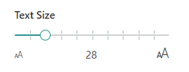
- Select Reading Preferences
 ,then select Translate > Choose a language) to set the desired English accent
- English (Australia) - (female voice same as Natasha)
- English (Canada) - (female voice same as Clara)
- English (Hong Kong SAR)
- English (Ireland) - (female voice same as Emily)
- English (United Kingdom) - (female voice same as Sonia)
- English (United States) - (female voice same as Aria)
- Select Text Preferences
-
- Ensure Document mode is enabled (this ensures the whole text block is read in the selected language otherwise it’s just done by word)

- Ensure Document mode is enabled (this ensures the whole text block is read in the selected language otherwise it’s just done by word)
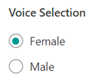
- Close the side-bar menu and then select the Voice Settings button

- Choose the male or female voice as required
Script Sound Checks
- Select Play
 in the Immersive Reader and listen to the script
 - If the text needs to be adjusted to improve the reading then select Exit to close the Immersive Reader and return to the document
- Make the necessary changes to the text to improve natural expression (refer to How to adjust text scripts for a more expressive voice)
- Retest the audio playback a number of times to ensure it's correct before recording
⚠️ The Immersive Reader settings are lost each time the reader is closed and will need to be set again before playing the audio
Recording
- Open the script document using Immersive Reader and ensure all Voice settings are set ready to go
- Select the start of the text where you want the reader to start reading from and test by pressing play. Once the text starts to read aloud and you can hear it, then select pause and then reposition the cursor to the start position.
- Go to the chrome extension SpeechText.Ai in the menu bar and select Capture Audio
- Then quickly select Play in the Immersive Reader
- Follow the Immersive Reader highlighting the spoken text and when the all of the script has been read, quickly go to the chrome extension SpeechText.Ai in the menu bar and select Stop and Save Audio
- Then select Save Audio and choose a location where to save the audio file, name the flie to correspond to the question part as required e.g. q02-intro-1-audio.mp3, q05-correct-2-audio.mp3, q07-incorrect-3-audio.mp3
- Close the Speechtext.AI tab
- Exit from the Immersive Reader