![FMN_logo_2024.png]](https://support.forgetmenot.chat/hs-fs/hubfs/FMN_logo_2024.png?height=40&name=FMN_logo_2024.png)
Insight Reports can be exported in a number of different formats
- Download 1 or more report pages in PDF format
- Export individual chart data in csv or excel format
- Export list data in csv or excel format
Export in PDF Format
⚠️ It is important with multiple filters to ensure the STATUS filter is applied before the GROUP or TRACKING CODE filters otherwise status data will not be included in the export
▶️ To download report pages as PDF document, right-click on the report background and select Download page as PDF.
Then select All Pages or Select Pages and choose individual pages required.
Choose from the additional Options (ignore background colour, add a link back to the report, password protect the report) and then choose download when done.
Once prepared, save the file to a location as required.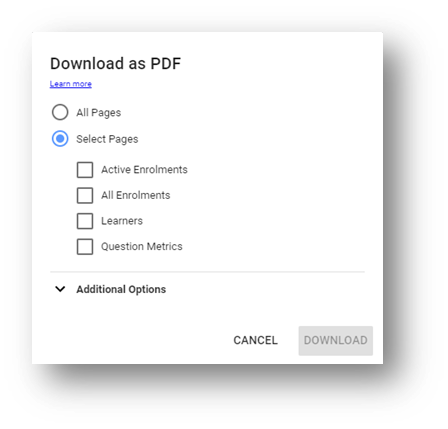
Export Chart Data in CSV Format
▶️ To Export individual chart pages, select the more menu on selected charts and then choose Export from the options.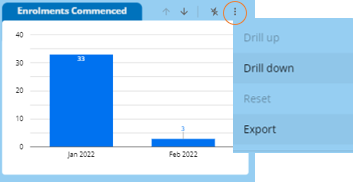
Enter a Name and select the Export As file format as required, then choose Export and save the file to a location as required.
Export Learner Data in CSV Format
▶️ To export list data, select the 3-dots and then select Export from the options.
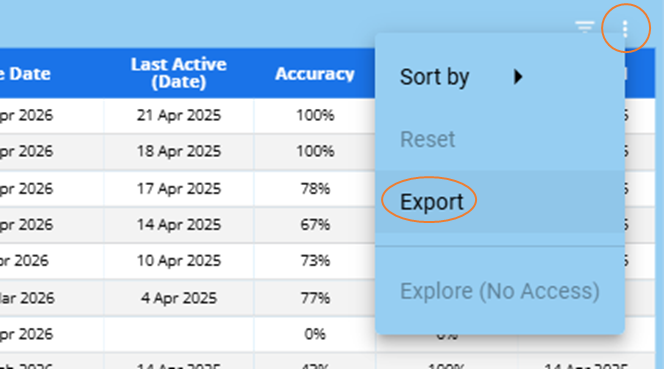
Enter a Name and select the Export As file format as required, then choose Export and save the file to a location as required.
⚠️ Any filters that are applied prior to export will limit the data to the visible set