![FMN_logo_2024.png]](https://support.forgetmenot.chat/hs-fs/hubfs/FMN_logo_2024.png?height=40&name=FMN_logo_2024.png)
The mobile app has a built-in PDF viewer which ensures learners can view PDF documents without the need for a separate app and to ensure they remain inside the Forget Me Not app.
When creating PDF documents as a Learning Resource there are some things to consider:
- Document Layout - use portrait over landscape for better layout in the learners device
(see examples of both layout types)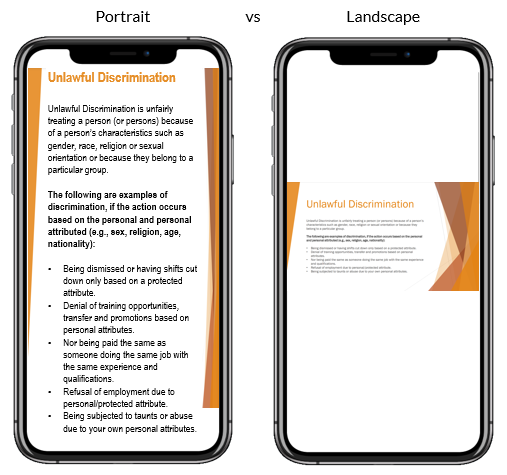
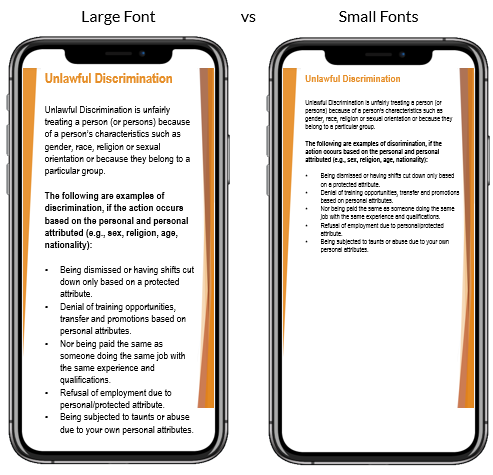
- Text Size - Consider the size of the text or image used in the source document - make sure it's large enough to read on a phone. The learner can zoom in, but small fonts will need a lot of zooming
- Link to the Parent Website - Linking to the parent website when documents / and paths are updated often, so the link doesn't break (see Website Resources).
- Link directly to the PDF Document - Linking directly to the document means the document opens in the App built in PDF view
- Links directly to the PDF Document on a Sharepoint Site - If you want the PDF to open in the built-in view then links directly to a PDF Document on a Sharepoint site must be created using the following process;
- Open the PDF in SharePoint.
- Then select Open in Browser.
- Copy the direct PDF link from the browser URL bar
e.g., https://acme.sharepoint.com/sites/AcmeCampaigns/Shared%20Documents/General/Campaign%20Poster/Campaign-Poster.pdf