![FMN_logo_2024.png]](https://support.forgetmenot.chat/hs-fs/hubfs/FMN_logo_2024.png?height=40&name=FMN_logo_2024.png)
The User List is useful to see all named users within your organisation to be able to manage names and email updates. The list also shows the type of account and the count of groups they are members of.
The User List also shows the User Invite status of each user and if signed in, when they were last active.
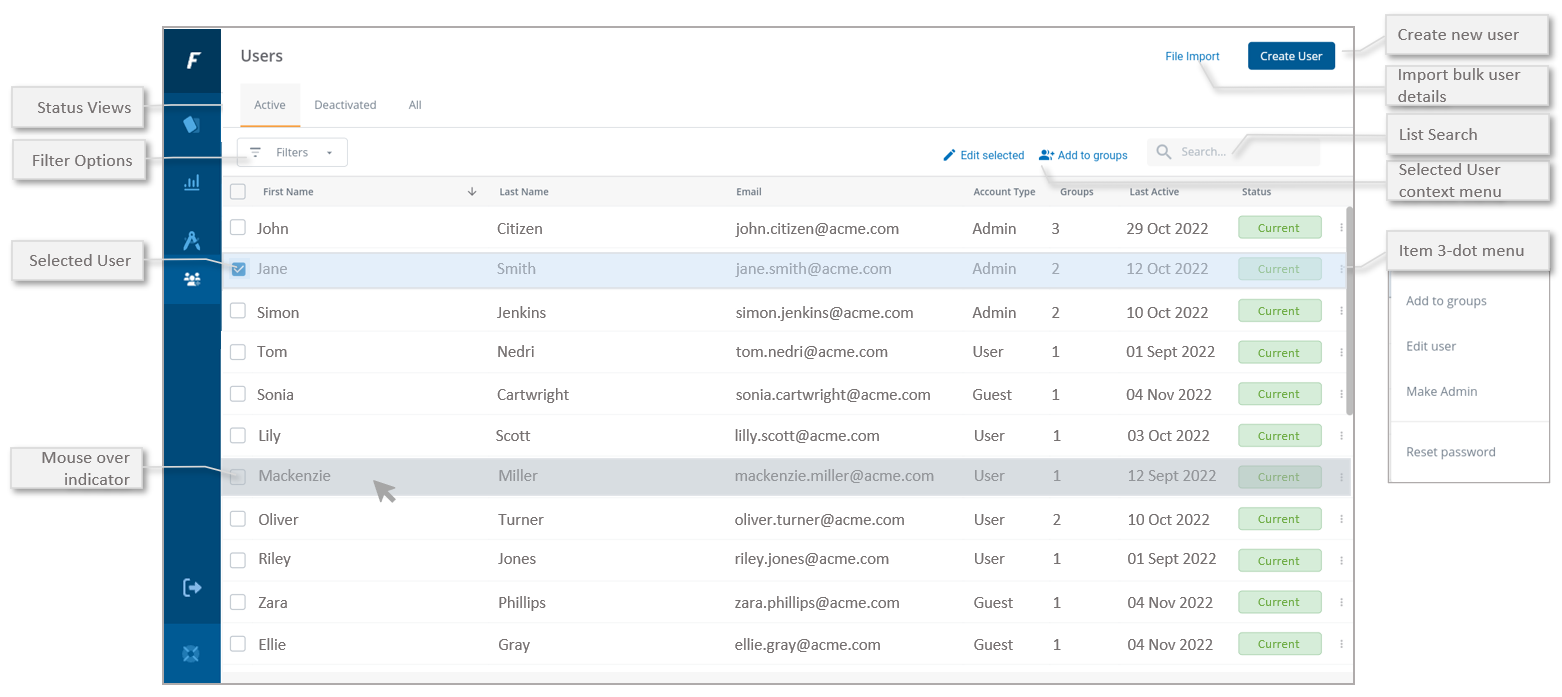
Main Functions
Status Views and Filters
Use the tabs to only show Active Users, Deactivated Users, or All Users. The Filters and/or Search can also be applied to provide filtering by Account Types or Name / Email.
- Active Users - A list of users that have the ability to be enrolled in a series
- Deactivated Users - A list of users that don't have the ability to be enrolled in a series
- All Users - A full list of user both Active and Deactivated which can be filtered in many different ways
Create Users
Use the Create New User to add a single user by entering in their details and selecting the account type and other options. Use File Import to upload a file containing multiple user details.
Selected Users Context Menus
Select one or more users using the checkboxes to then show selection options such as Edit Selected or Add to Groups. These options apply to all selected users.
User Item Menus
Mouse over a user to highlight it or use the 3-dot menu at the end of the list to show item-specific functions.
- Add to Groups - adds the user to the selected groups.
- Edit User - allows editing of basic user data.
- Make Admin - Promotes a User to have Admin privileges which enables them to access the console.
- Reset Password - Have a link sent to the user to allow them to reset their password or have the link sent directly to the logged-in admin user or a specified email address e.g. the user's manager or team leader.
List Columns
Name and Email Address
Shows the user's first and last name and current email address.
Account Type
Indicates what type of account the user has.
Groups
Indicates the number of groups that the user is a member of. Use the Groups list to view the memberships of a group.
Last Active
Last active shows the date when the user has done any of the following activities:
- User logged into the mobile app
- User opens a Series in the App
- Admin users logs in to the console
⚠️Last Active is not updated when a user opens an organisation resource
Invite Status
The User Invite Status shows the state of an invited user depending if they have been sent a welcome email, not sent the welcome email or if they have signed in.