![FMN_logo_2024.png]](https://support.forgetmenot.chat/hs-fs/hubfs/FMN_logo_2024.png?height=40&name=FMN_logo_2024.png)
The create new series process is based around 3 simple steps:
- Selecting a published Question Set
- Adding in Learner specific details for enrolment
- Decide to view the series or process enrolments straight away
Step 1 - Select a published Question Set
- Go to Series > Create New Series
- Then select a published Question Set from the list
- Review the details, and then choose Use Question Set.
✅ The list of published sets is generated from question sets that have been either;
- purchased from the Question Gallery
- authored and then shared for use by another organisation
- authored directly in the Question Builder and published
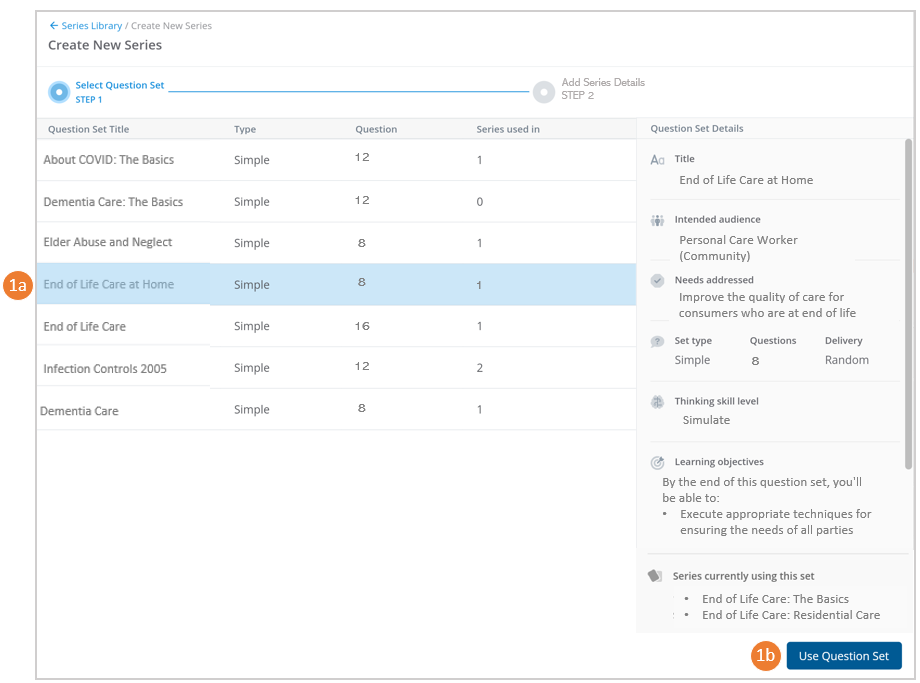
✅ You can check the Series currently using this set to understand where else this set is already used
Step 2 - Add in Series Details
- Add in the Series details which provides audience and delivery specific context to the question set to make it ready for learner enrolments.
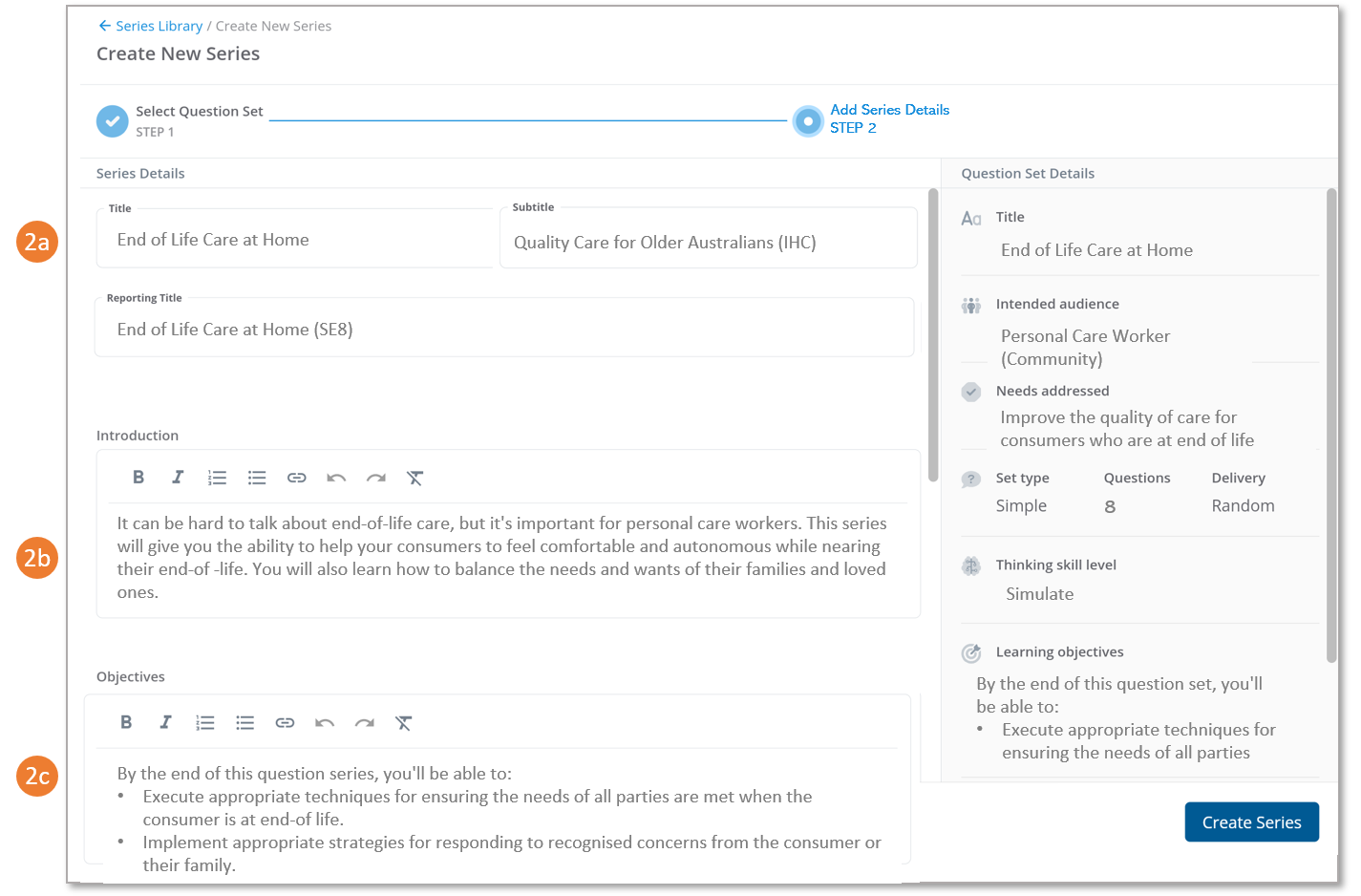
The following Series details must be provided:
- Title - the name of the Series that the learner will see in email communications and in the app. It is also shown in the Series Library
- Subtitle - this allows for any extra title detail to be provided to the learner when they view the Series in the My Learning dashboard. For example it could indicate the overarching purpose of a group of series or provide extra context.
Important: The subtitle should not be the organisation name as this is already displayed to the learner in the My Learning dashboard - Reporting Title - the unique name of the Series used only in Insights reports and not seen by the learners. The reporting title can be different to the Title if required and can provide extra detail about the series such as year, audience, set type or the number of questions
- for example - End of Life Care At Home 2022 personal care worker (Simple-12)
- Introduction - an explanation of the Series that the learner will see in the welcome message when they open the app and view the Series for the first time. They can also read the introduction directly from the Series Overview when they view the Series Info
- Objectives - a list of bullets points that describe what specific knowledge will learners obtain at completion of the series. This information is shown in the Series Library and can also be read directly by the learner from the Series Overview when they view the Series Info
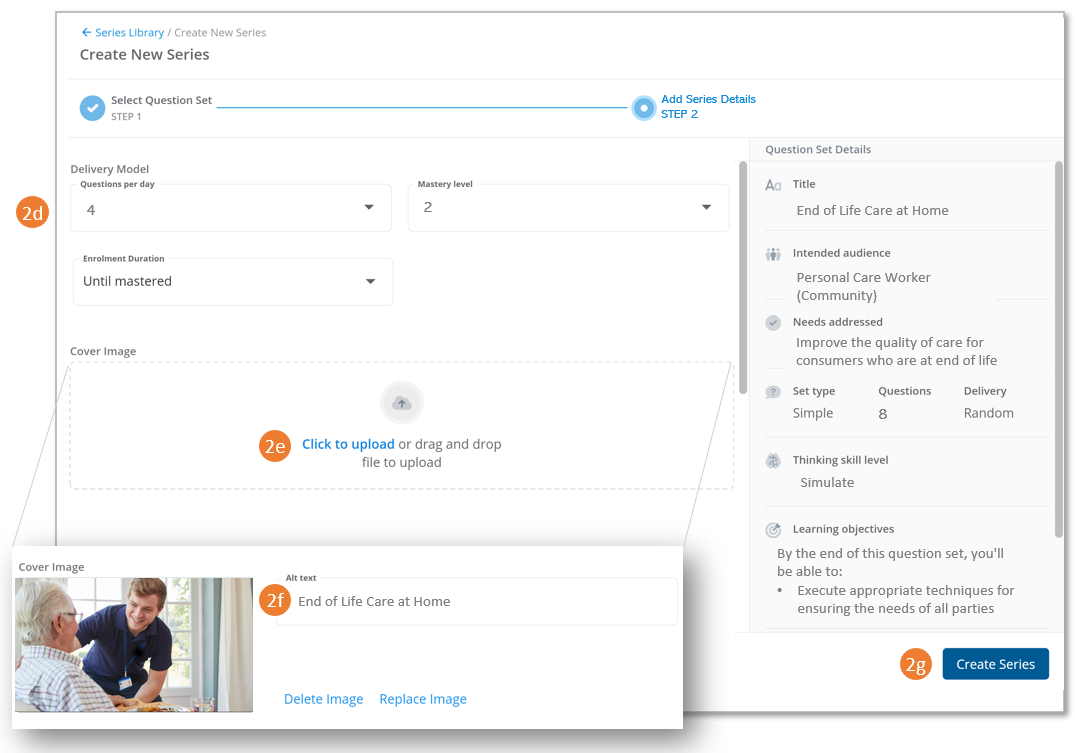
- Delivery Model - specific parameters used during Series enrolments that determine the following:
- Question per day (QPD) - this determines how many questions learners will receive per day when questions are available. For example, if the value is set to 2, learners will initially receive 2 questions per day for the first few days until they have seen all questions once. Then the spaced repetition function determines when learners see the next questions depending on how they answered the first time. This value also sets the daily question limit which is a maximum of 2 x QPD
- Mastery Level* - how many times a learner must correctly answer a question in a row to achieve mastery, the higher the value, the better knowledge retention the learner will have. Level 2 is typically used for Simple Sets and values of 3 or higher for Advanced Sets
- Enrolment Duration* - this setting determines how long the enrolment will go for, and can be set to any of the following values:
- Until Mastered - this is the recommended option and ensures the learner will have access to the Series for as long as it takes them to mastery the Series up to a maximum of 12 months from the date of enrolment.
✅Until Mastered will also allow the series to be used in a Learning Pathway.
-
-
-
- If a learner masters the Series before 12 months is up, they will still be able to view the mastered Series in the app until the 12 month duration is reached.
- Fixed Duration - this option ensures the learner will have access to the Series for the specified enrolment duration.
- The duration is specified by a timeframe (days, weeks, months) and an amount.
- Fixed duration means that learners will only get access and need to try and master the Series within the enrolment duration. Once the enrolment duration has ended, learners may lose access to the Series unless an extended access period has been set. If a learner masters the Series before the enrolment duration has ended, they can view the mastered Series in the app until the enrolment timeframe is reached.
-
-
⚠️ Using Fixed Duration will not allow the series to be used in a Learning Pathway
- Cover Image - this is the image that is displayed in the Series Library and also what the learner sees in the My Learning dashboard
-
-
- The cover image must follow specific sizing guidelines to display correctly in the console and app
- You should add in a company logo to the cover image prior to uploading
-
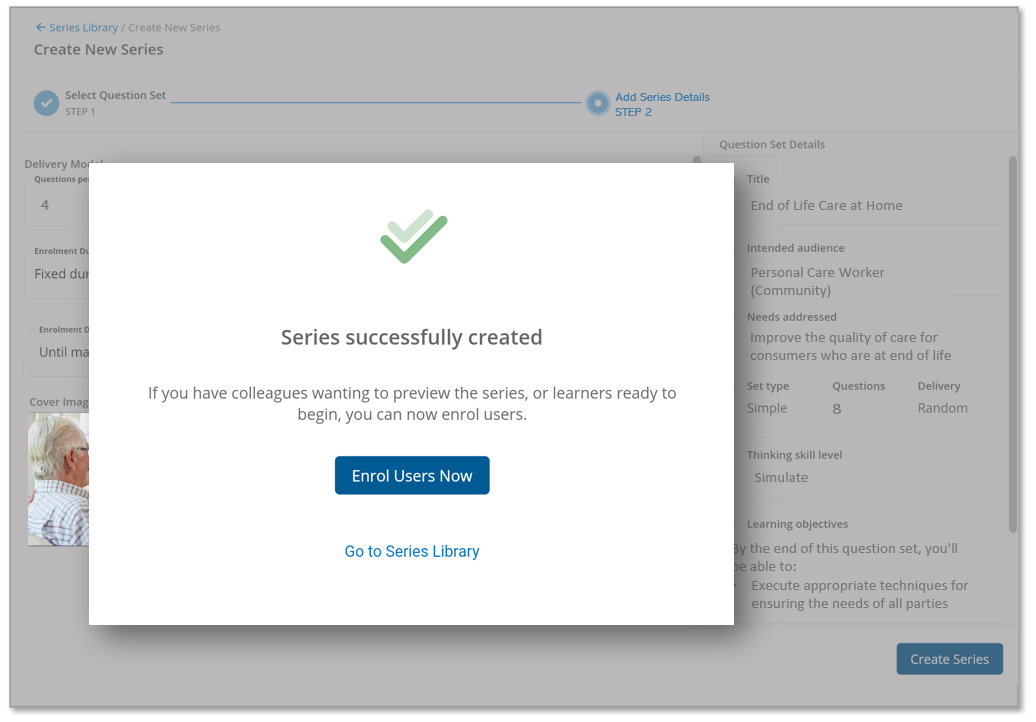
Step 3 - Series Successfully Created
Once the Series has been created, the following options are possible:
- Enrol Users Now - learners can be enrolled straight away in the newly created Series
- Go to the Series Library- view the Series in the Library and use for future enrolment