![FMN_logo_2024.png]](https://support.forgetmenot.chat/hs-fs/hubfs/FMN_logo_2024.png?height=40&name=FMN_logo_2024.png)
In order to convert text into audio clips for use in Question Sets the following prerequisites, setup, checks and recording steps must be followed.
⚠️The method is best used for text scripts that require English accents of either; Indian, Nigerian, Philippines or South African but can also be used to provide other accents such as English, Australian, American and Canadian
⚠️ This method has limited male voices to choose from so might be best to use the other method
Prerequisites
- O365 account with MS Word or PowerPoint
- Microsoft Edge Web Browser
- A PC based sound recording program (e.g. Audacity) configured to record computer audio
- Text Scripts based on the Question Set in in PowerPoint or Word format
Recorder Setup
It is recommended to use the Audacity recording tool to record the audio however any recording tool can be used that can record from a browser.
- Install audio recorder on your PC
- Configure the audio recorder to record from computer audio (refer to How to setup Audacity to record computer audio)
Script Setup
- Open the script document directly in the Edge Browser
- Select the text that you want to convert to an audio clip then select the Read Aloud icon
 from the browser bar (or use Ctrl+Shift+U hotkeys)
 - Select Voice Options from the menu that appears in the browser bar

- Select Choose a voice and pick the required natural English accent male (Abeo or Guy) or female from the list:
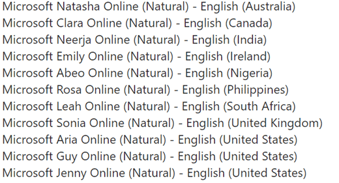
⚠️ It is not recommended to use the following voices due to the poor speech quality
George, James, Catherine, Hazel, Susan
Script Sound Checks
- Select the text that is required to be converted to an audio clip
- Select Play
 in the browser bar menu and listen to the script
 - If the text needs to be adjusted to improve the reading then deselect the text, make the necessary changes to the text to improve natural expression (refer to How to adjust text scripts for a more expressive voice)
- Select the text again and test audio playback a number of times to ensure it's correct before recording
⚠️ The Read Aloud function can be used to read all visible parts to the screen so it's important to select the text you want to read before pressing play
Recording
- Open the Script document in Edge, enable Read Aloud and ensure all Voice settings are set ready to go
- Select the text block that you want to be read aloud.
- Go to audio recording program and Record Audio
- Then quickly select Play for the Read Aloud function in the Edge Browser
- Listen to the spoken text and when the all of the script has been read, quickly go to the audio recorder and Stop Recording
- Then Export Audio as mp3 and choose a location where to save the audio file, name the flie to correspond to the question part as required e.g. q02-intro-1-audio.mp3, q05-correct-2-audio.mp3, q07-incorrect-3-audio.mp3