![FMN_logo_2024.png]](https://support.forgetmenot.chat/hs-fs/hubfs/FMN_logo_2024.png?height=40&name=FMN_logo_2024.png)
Images downloaded from stock image websites such as Shutterstock or iStockPhoto can be very large in size and will need to be resized before using in a Question Set.
Any image resizing tool can be used and some even come included with your computer such as Photos (Windows).
The two main things that need to be checked are:
-
Aspect Ratio - use 16:9 sized to 1920 x 1080 for your images in landscape orientation for best results, but images can be cropped to less than 1080 high if required (refer to Media Formats for full specification)
-
Image Quality and File Size - adjust the quality of the image to 95% to ensure the final file size is within the specified sizes (refer to Media Formats for full specification)
Basic Steps to set the aspect ration and resize an image
- Open the image in the image resizing tool
- Apply a pre-defined aspect crop at 16:9 (Widescreen) and adjust the position of the image within the frame as required
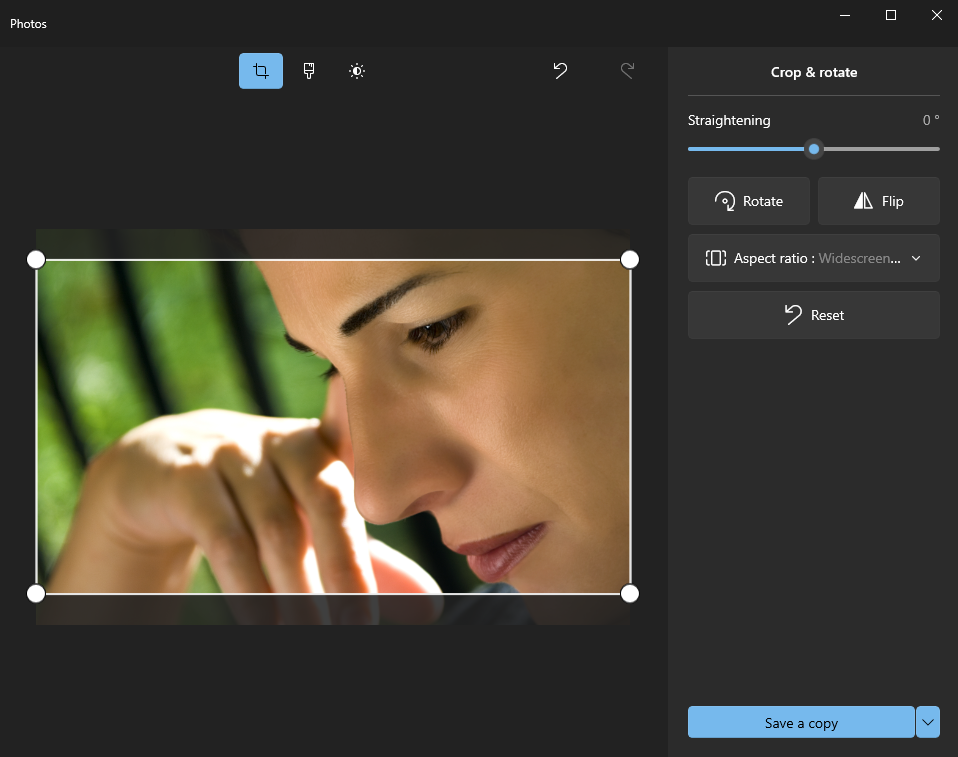
- Save the changes
- Then resize the image to 1920 x 1080 pixels and adjust the quality level to achieve the best file size e.g. 95% takes 1MB down to 359KB
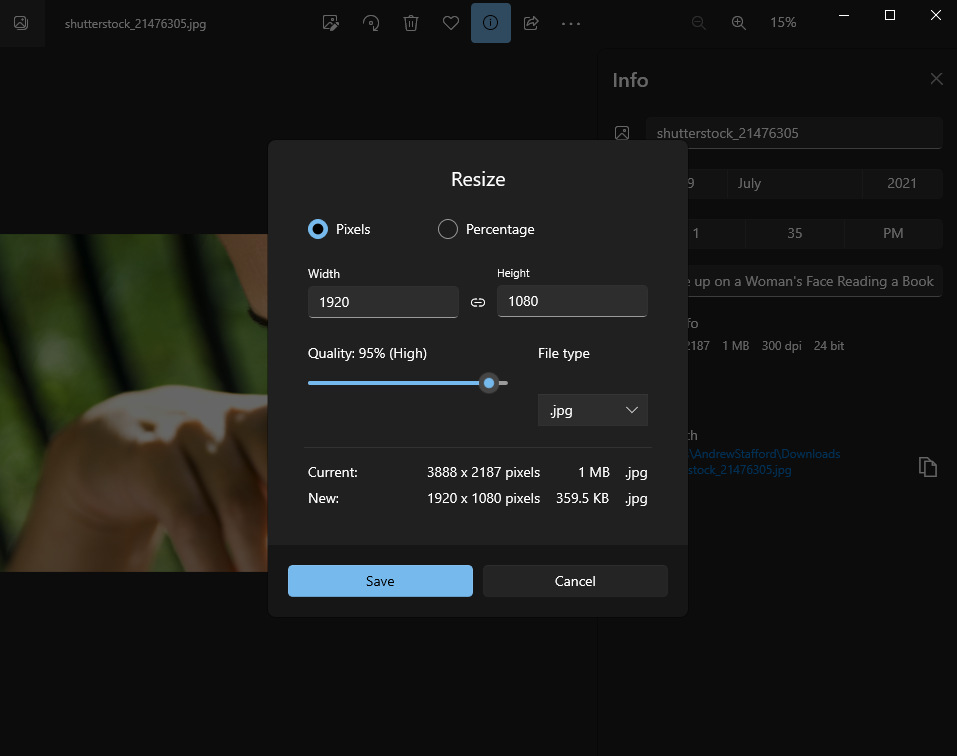
- Save the image
✅ Consider naming the image so that it is related to the question title to make it easier to find when adding to a Question Draft or when creating a Series