![FMN_logo_2024.png]](https://support.forgetmenot.chat/hs-fs/hubfs/FMN_logo_2024.png?height=40&name=FMN_logo_2024.png)
▶️ Goto Insights then select Enrolments using the View Selector on the Insights Reports.
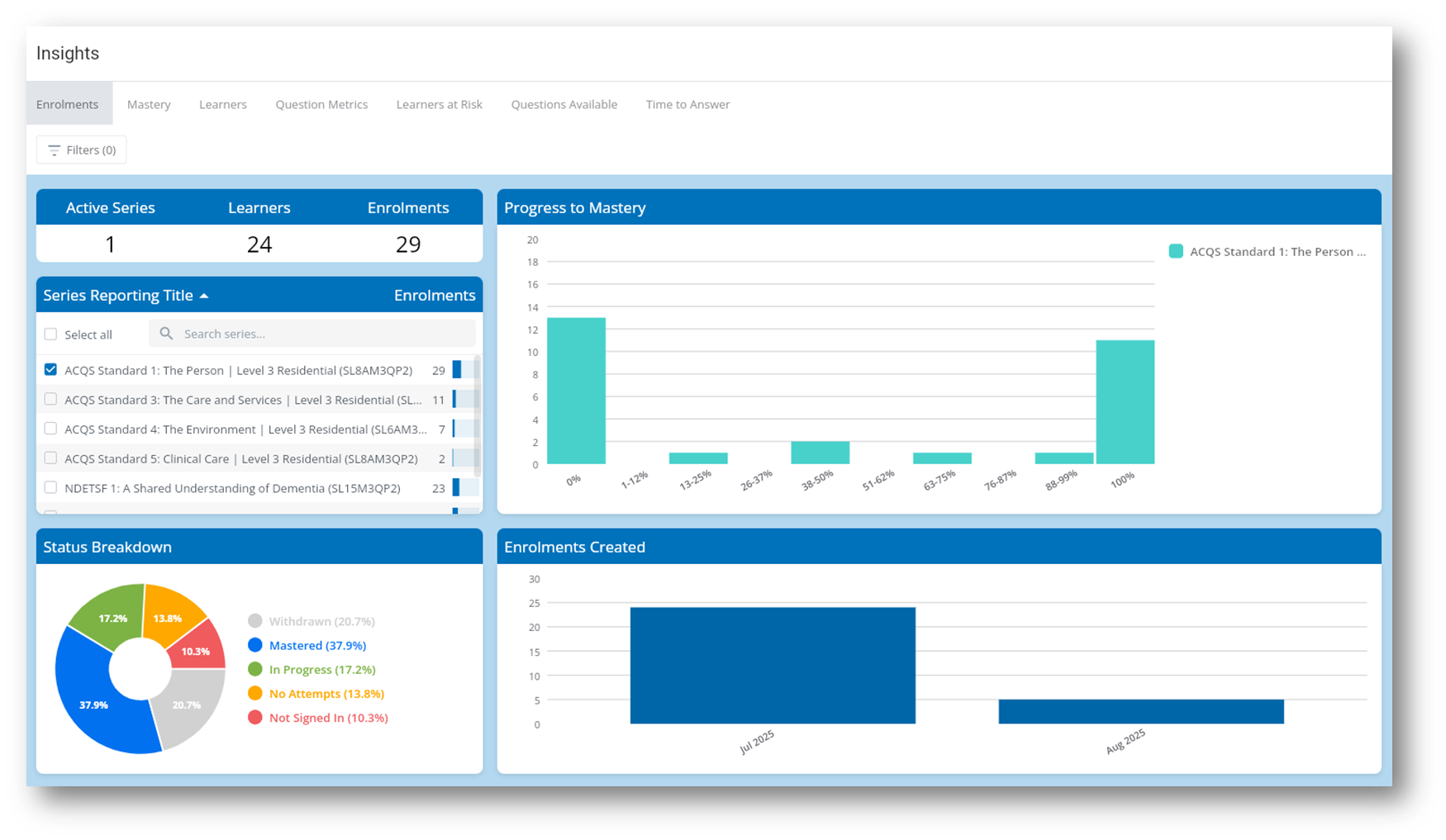
Enrolment Details
Active Series - total number of series based on the current filter selections
Learners - total number of learners based on the current filter selections
Enrolments - total number of enrolments based on the current filter selections. There can be more enrolments than learners when some learners are enrolled in multiple series at the same time
Series / Enrolments - The name of the series and the number of enrolments based on the current filters. Series can be selected individually (select per name to bold) or multiple (using ctrl-select) and this will filter the enrolments to show only those that match. Select again to deselect (name not bold)
Status Breakdown - A graphical view of the percentage of learners that are at a particular enrolment status
Charts
Progress to Mastery - an indication of the number of learners at a particular progress percentage. Progress percentage increases based on the number of times a question has been attempted correctly and can decrease when answered incorrectly
Enrolments Commenced - the number of learners that commenced enrolments in a particular period.
Filters
Content can be further refined by using filters such as:
Group Filter - Select one or more Groups to filter the enrolments to show only those enrolments that are members of the selected groups.
Status Filter - Select one or more status to filter the enrolments to show only those enrolments that match the selected status.
Tracking Code Filter - Select one or more tracking codes to filter the enrolments to show only those enrolments that match the selected tracking codes. Tracking codes can only be set at the time the enrolment is created
Enrolment Date Filter - Select a from and to date range will filter the enrolments to show only those that match
Active Users Only - When selected, only users that are active will be shown. By default all learners including those that have been deactivated will be shown