![FMN_logo_2024.png]](https://support.forgetmenot.chat/hs-fs/hubfs/FMN_logo_2024.png?height=40&name=FMN_logo_2024.png)
The pathway enrolment steps apply only to active users (deactivated users will not appear) and is a simple process that allows one or more users to be selected and then have enrolment details applied prior to creating the enrolment.
- Selecting Users
- Applying Enrolment Details
- Progress Completion
Step 1 - Selecting Users
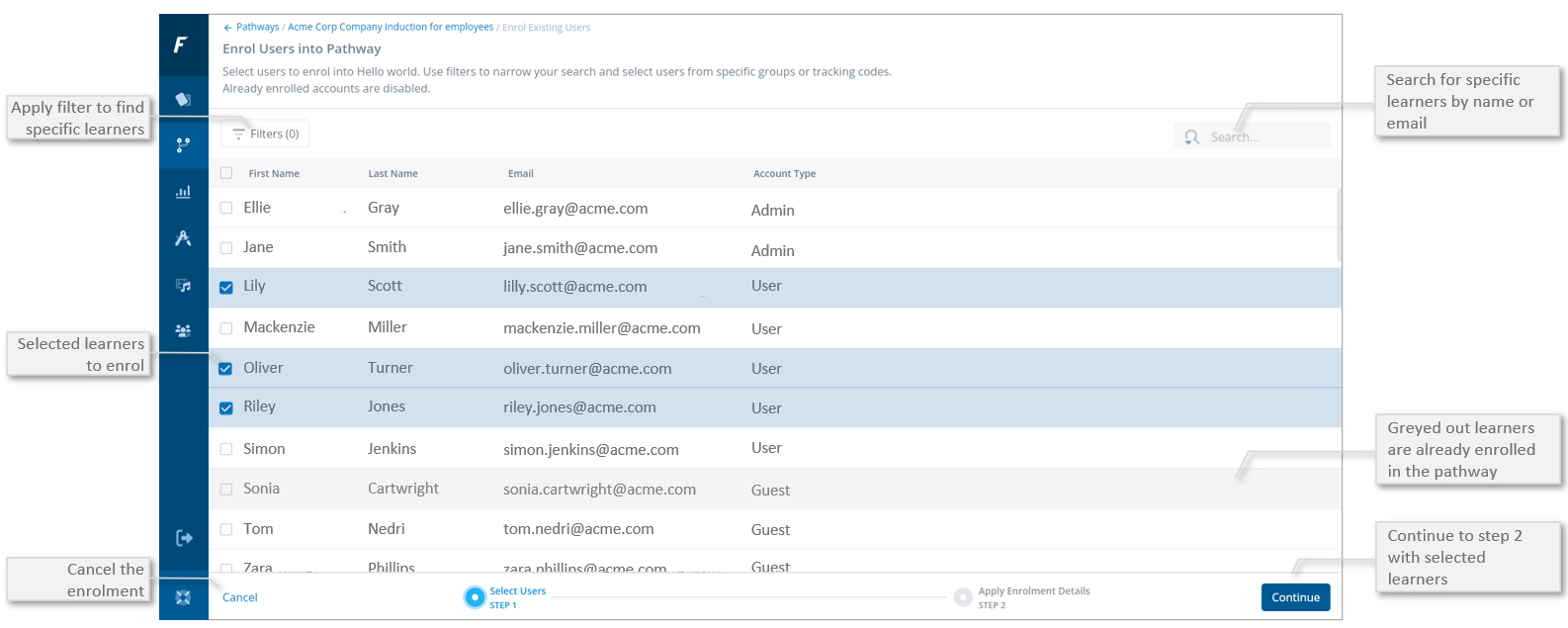
Users can be selected by any of the possible methods:
- Scroll and find the users in the list
- Search by user first/last name or email address
- Use the Account Type Enrolment Filter to find a user by Account Type
- Use the Group Enrolment Filter to find a user by Group Membership
⚠️ Users that are already enrolled in the pathway or in a series that's in the pathway will be greyed out and cannot be selected.
▶️ Once all users are selected, select Continue to move to next step or select Cancel to close the pathway enrolment wizard
Step 2 - Applying Enrolment Details
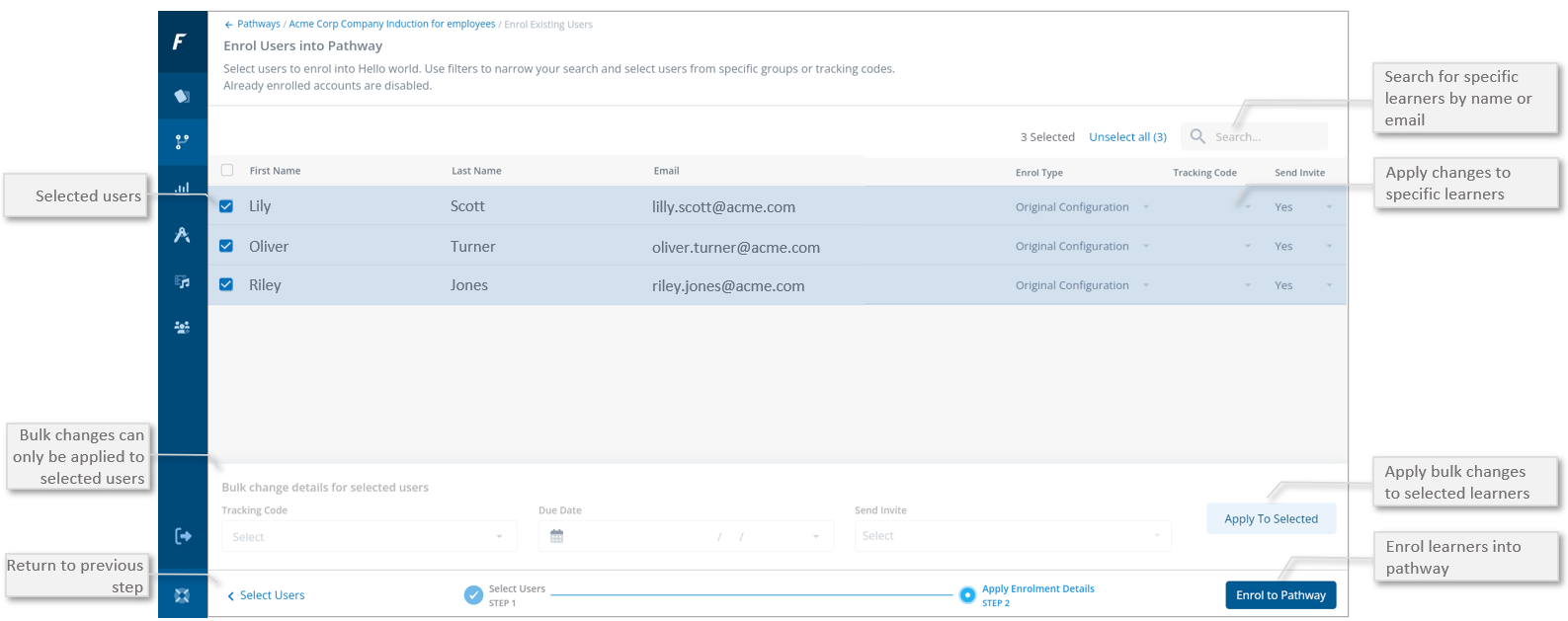
Enrolment Details can be applied in one of the following ways:
-
Applied to individual users
- Applied to all selected users
Applied to Individual Users
-
Different enrolment details can be applied to the individual user records by adjusting the values directly in the fields for each of the listed users
Applied to all Selected Users
- Bulk detail changes can be applied to all selected users, by adjusting the values in the bulk change area and then selecting Applying to Selected
- The bulk changes will be updated in the list for all selected users
Enrolment Details
- Enrol Type - Choose to use the original pathway configuration or override with all series in burst mode
- Tracking Code - Enter free text which can be used later to filter for the enrolment in lists and reports
- Send Invite - if Yes, the system will send the Pathway Enrolment email to the learner, if No, then no email will be sent
▶️ Once all enrolment details are applied, select Enrol to Pathway to process the enrolments
Step 3 - Progress Completion
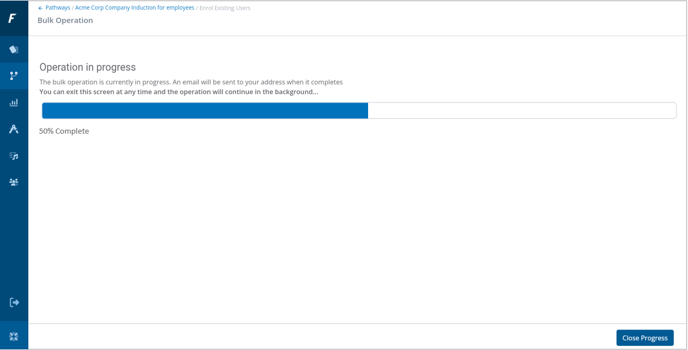
Depending on the number of enrolments being processed the operations progress screen will display the percentage completion of the tasks. Select Close Progress to close the screen at anytime and the tasks will continue in the background.
A pathway enrolment summary email will be sent to the admin when all enrolments have been processed and this will indicate enrolment success or enrolment failures.