![FMN_logo_2024.png]](https://support.forgetmenot.chat/hs-fs/hubfs/FMN_logo_2024.png?height=40&name=FMN_logo_2024.png)
▶️ Goto Insights then select Question Metrics using the View Selector Tab on the Insights Reports. Then select a specific Series from the list to show content
The question metrics report is a great way to drill down on which answers were selected and to determine if learners are being challenged by particular questions. The charts are colour coded to make it easier to identify ongoing issues.
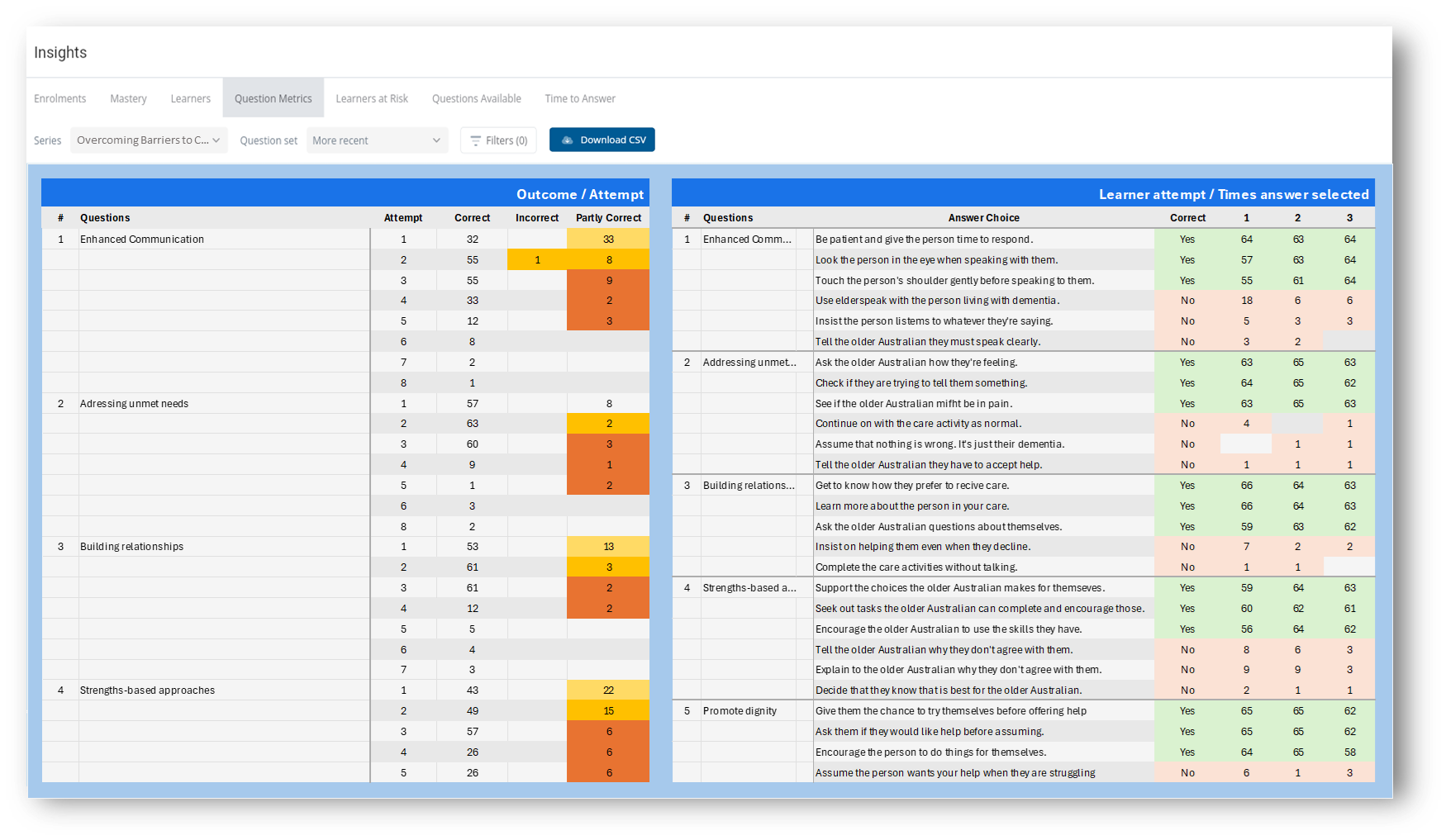
Outcome / Attempts
- This table shows the question number and title and then for each attempt it shows how many learners were correct, incorrect or partly correct going down the page. The more attempts indicates that learners are continuing to get the answers incorrect which may require review or intervention.
Learner Attempt / Times Answer Selected
- This table shows the question number and title, each of the answer choices, if the answer is correct (yes) or incorrect (no) and then the number of learners who made that choice for each attempt (attempts may be limited to 4 or 5 max to fit the available space).
- An Answer marked as Correct (yes) is one that the learner needs to select to master the question. An answer marked as no is a distractor and should not have been selected by the learner. If the learner continues to select a no answer for each attempt this may indicate extra training is required or a review of the feedback.
✅ Refer to How to read and interpret Question Metrics for tips
Colour Indicators
Attempt Counts change colour to show the following values:
🟢 Green = correct (all choices were correct)
🟡 Yellow = partially correct or incorrect on 1st attempt
🟠 Orange = partially correct or incorrect on 2nd attempt
🔴 Red = partially correct or incorrect on 3rd attempt
Question Set - select different version of the question set used with the enrolments. The report defaults to use the latest version that has been published.
Filters
- Groups - Select one or more Groups to filter the enrolments to show only those enrolments that are members of the selected groups.
- Learners - select one or more Learners by name to filter the list of learners
- Tracking Codes - select one or more tracking codes from the A-Z sorted list to filter the list of learners. The Tracking Codes list will be limited based on the applied Release Date filter
- Enrolled Date - Select a from and to date range will filter the enrolments to show only those dates that match. Any date range filter applied will also limit the items displayed in the Tracking Codes list
-
Clear All - this will clear all filter selections
⚠️ Reports show all enrolments except for any where Series Preview mode was selected during the enrolment
✅ select Download CSV to export data for further analysis