![FMN_logo_2024.png]](https://support.forgetmenot.chat/hs-fs/hubfs/FMN_logo_2024.png?height=40&name=FMN_logo_2024.png)
Resources can be created in the following ways:
- From the Resources Library
- From the Question Builder
- When creating a Resource Collection
All methods use the same process, which allows resource details to be added, and files linked or uploaded, depending on the resource type.
▶️ Select Add/Create Resource to open the resource side panel and then enter in the relevant resource details, then select Create to save the changes
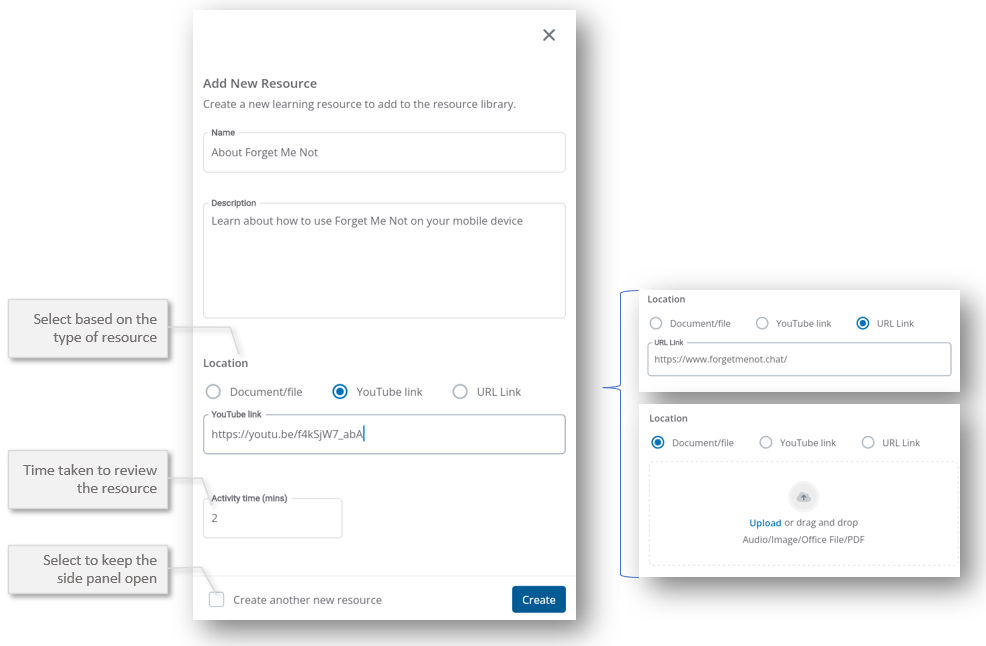
Resource Details
Name
Enter the name for the resource. This will be seen by the learner when viewing the list of learning resources from a question series or from an organisation resource list. Ensure the name has enough context that it can be differentiated from other resources when listed in the Resources Library or listed for the user.
Description
Enter a description for the resource. This will be seen by the learner when viewing the list of learning resources from a question series or from an organisation resource list.
Location
Select a location that fits to the type of resource that you have, based on the following types:
- Document/file - use when the file you have needs to be uploaded into the Forget Me Not system and is one of the following file types; PDF Document, Office Document, Audio Clip, Image
- YouTube Link - use when you have a link to an existing hosted YouTube video.
- URL Link - use when you have a website reference or a hosted document on a company website or SharePoint
✅For YouTube links, always use the short URL e.g https://youtu.be/f4kSjw7_abA as other links types will not work
✅If you create your own video content, you can easily setup your own company YouTube account and upload all your videos to your account and use with a resource.
Activity Time
Enter a whole number of minutes that you think it might take for the learner to view the resource. This lets the learner know approximately how long they might need with the resource.
✅ Select the Create Another if you want to keep the side panel open and add multiple resources otherwise the side panel will be closed when Create is selected