![FMN_logo_2024.png]](https://support.forgetmenot.chat/hs-fs/hubfs/FMN_logo_2024.png?height=40&name=FMN_logo_2024.png)
▶️ Goto Insights then select Learners using the View Selector Tab on the Insights Reports.
The Learners report is a great way to see all of the enrolments that a particular learner is doing or has done in the past. From this report you can get a holistic view of all learning and using the filters you can ensure that you only see the data you are looking for.
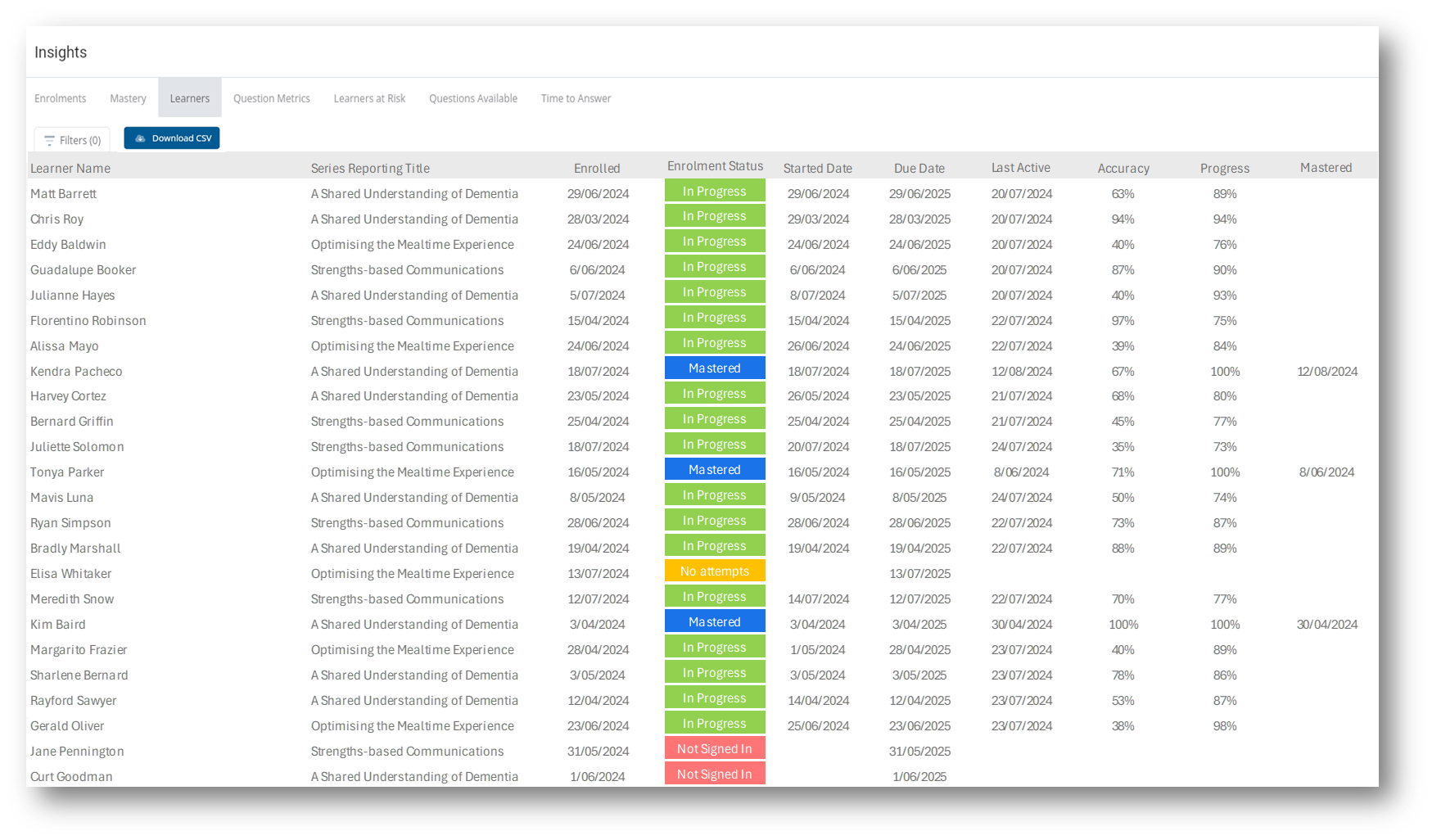
Main Content
- Learner Name (First and Last Name)
- Series Reporting Title
- Enrolled - the date when the learner was enrolled in the Series
- Enrolment Status - the current status for each enrolment which indicates if a learner is still active or has already mastered
- Started Date - the date when the learner opens the Series and answered their first question for the enrolment
- Due Date - is a recommended date set at the time of enrolment, to indicate when the series should be completed by, this is not the expiry or end date of the series
- Last Active - the date of the latest attempt for the enrolment. This indicates that the user has been actively answering questions
- Accuracy - percentage calculated based on correct attempts over total attempts seen x100
- Progress - percentage calculated based on correct attempts over total attempts available in the series x100
- Mastered - the date when the Series was completed by the learner
Filters
- Series Reporting Title- select one or more series to filter the list of learners
- Groups - Select one or more Groups to filter the enrolments to show only those enrolments that are members of the selected groups.
- Learners - select one or more Learners by name to filter the list of learners
- Status - select one or more Series Status to filter the list of learners
- Tracking Codes - select one or more tracking codes from the A-Z sorted list to filter the list of learners. The Tracking Codes list will be limited based on the applied Release Date filter
- Enrolled Date - Select a from and to date range will filter the enrolments to show only those dates that match. Any date range filter applied will also limit the items displayed in the Tracking Codes list
- Show overdue only - When selected, only users that are past the due date and have a status of In progress, Not Signed In or Not Questions Seen will be shown. By default all enrolments are shown regardless of the status and due date.
- Active Users Only - When selected, only users that are active will be shown. By default all learners including those that have been deactivated will be shown
-
Clear All - this will clear all filter selections
✅ Select a column heading to sort in ascending order, select again to sort in descending order
⚠️ Learner Reports show all enrolments except for any where Series Preview mode was selected during the enrolment
✅ select Download CSV to export data for further analysis